Installation
In this guide, we'll run through the process of getting your project and code editor set up for working on custom power-ups in Fiero.
Install Visual Studio Code
When working on custom power-ups, we need an editor to manage our projects and actually write code day-to-day. Currently, the only supported editor is Visual Studio Code, but we'll be expanding this to cover other editors in the future.
Install Extension
To use Fiero in VS Code, install the extension from the marketplace.
Log in with Fiero
You'll be automatically logged in to Fiero when you first use run an operation that requires it, like connecting to a project.
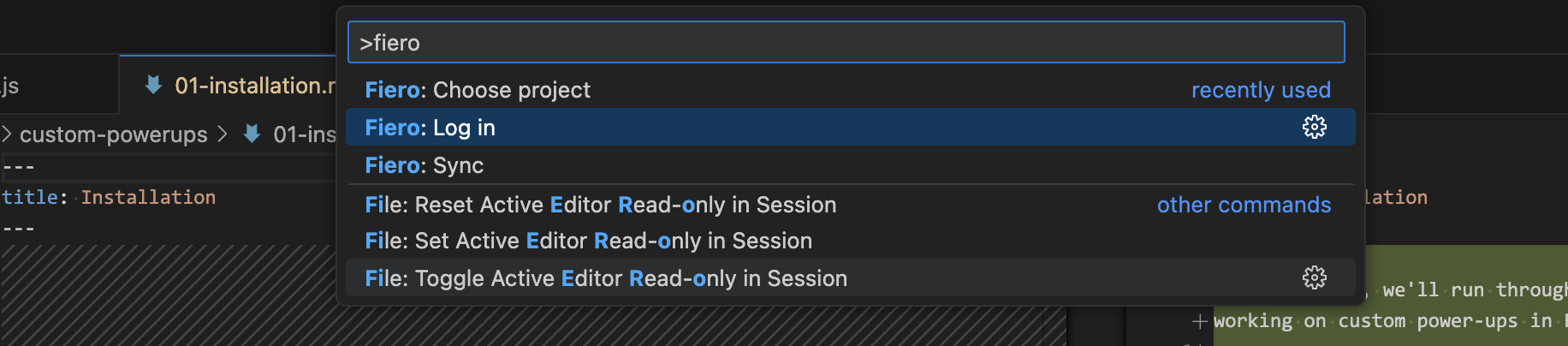
To log in with Fiero explicitly in advance, run the "Fiero: Log in" command in VS Code.
Connect to a project
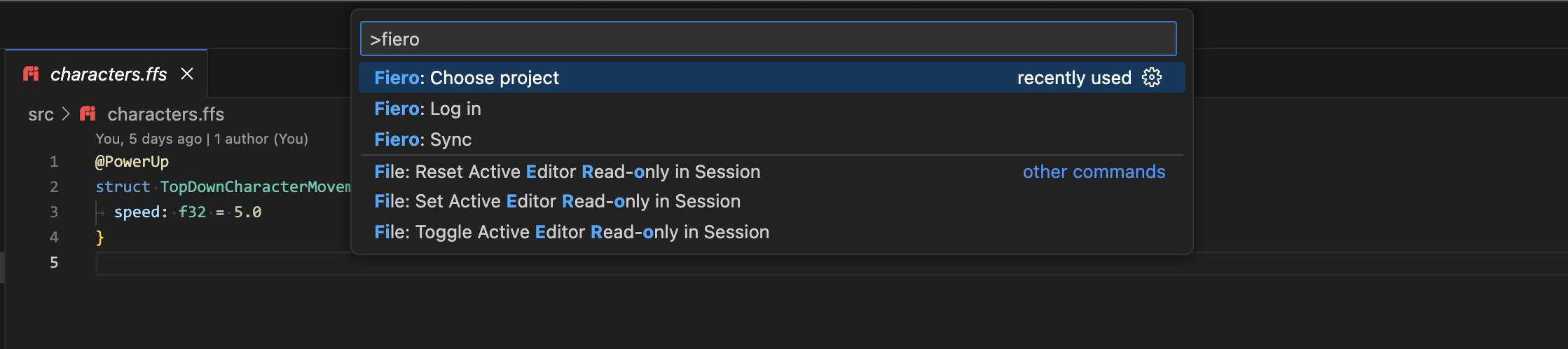
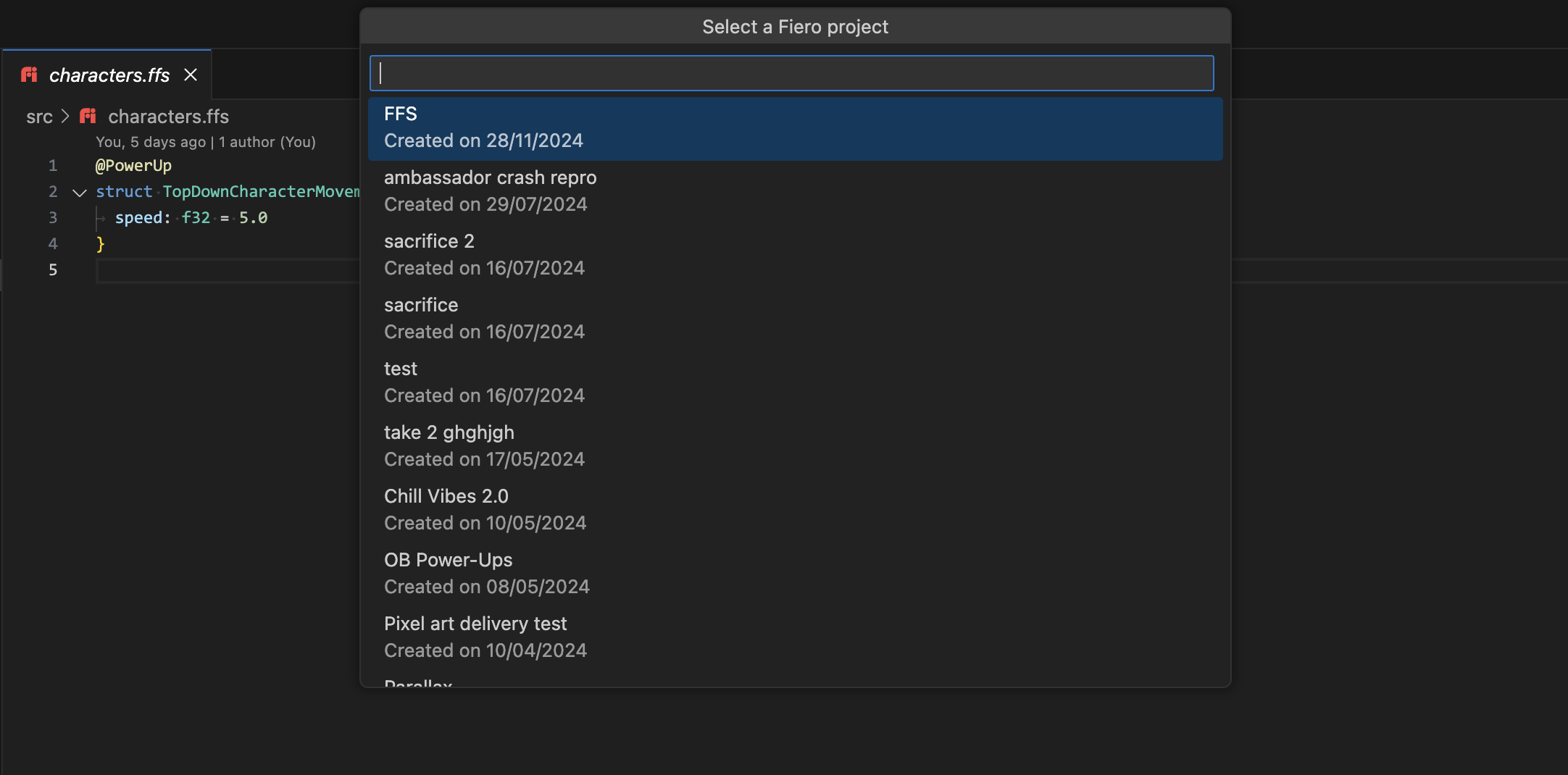
To start pushing your VS Code workspace to Fiero, you'll need to select a project to sync with. Select the "Fiero: choose project" command, and you'll be presented with a list of recent projects.